
Help centreWorkforceUpdated
Invite staff and choose what they can do
Add someone to the shop, pick their role, and know what that role does and does not let them near.
By the end of this the person has their own login, sees the parts of the app their job needs, and cannot reach the parts it does not.
Roles are enforced on the server, not just hidden in the menu — so a role that cannot refund cannot refund, whatever it types.
Open the team
Settings → Team. Everyone with a login is listed here with their role.
app.slickcell.com/settings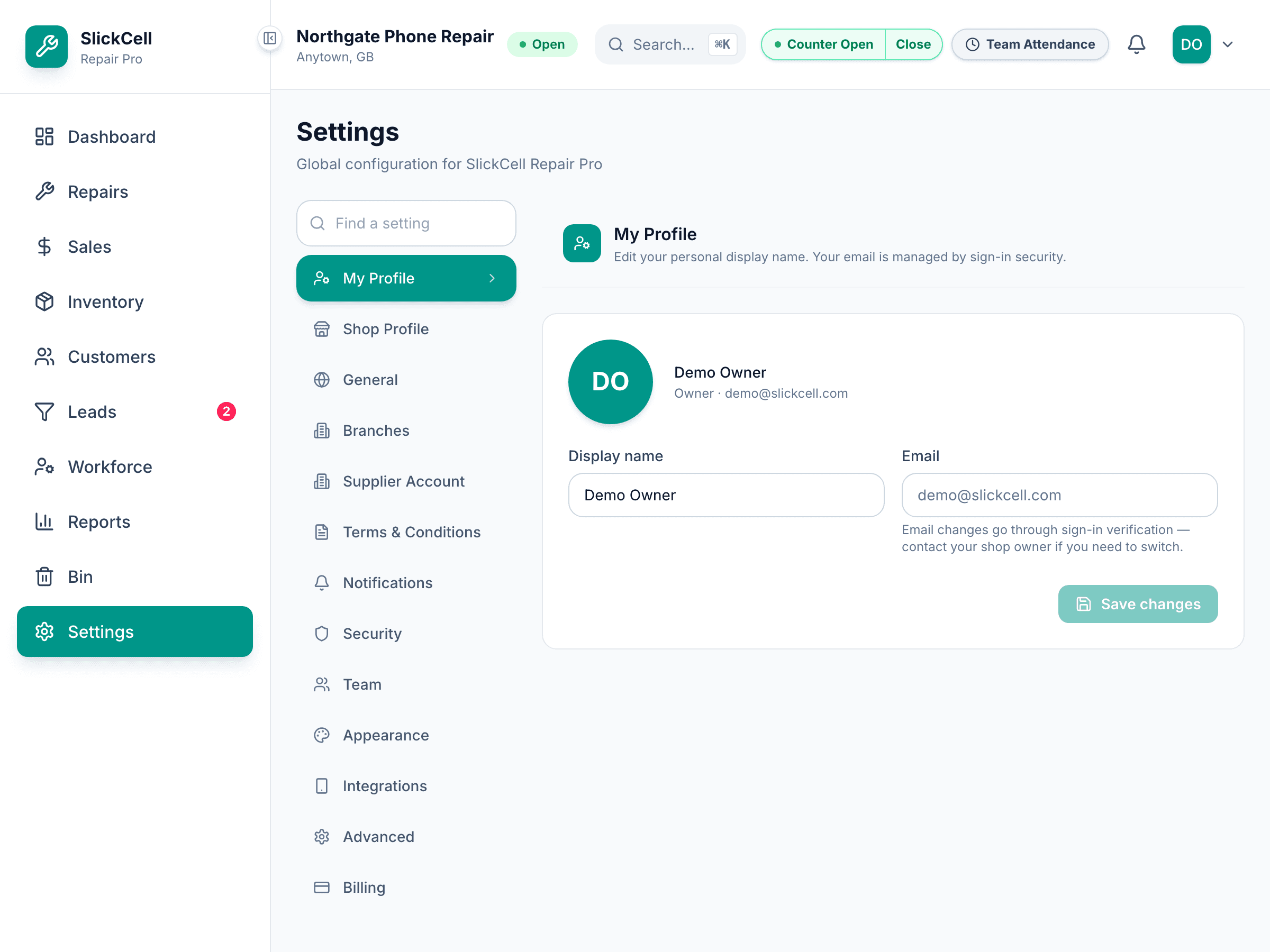
Send the invitation
Their email and the role you want them to have. They get an invitation and choose to accept it — signing in does not join anyone to your shop on its own.
Pick the right role
Owner has everything. Manager runs the shop day to day, including voids and write-offs. Technician works tickets and stock. Sales runs the till and books repairs in. Accountant reads the money without changing it.
Refunds are open to the counter; voids and write-offs are not. That split is deliberate — a mistake at the till should be fixable without finding a manager, and a reversal of settled money should not.
Check the load
Workforce shows who has what on the bench, so assigning a job is a decision rather than a guess.
app.slickcell.com/employees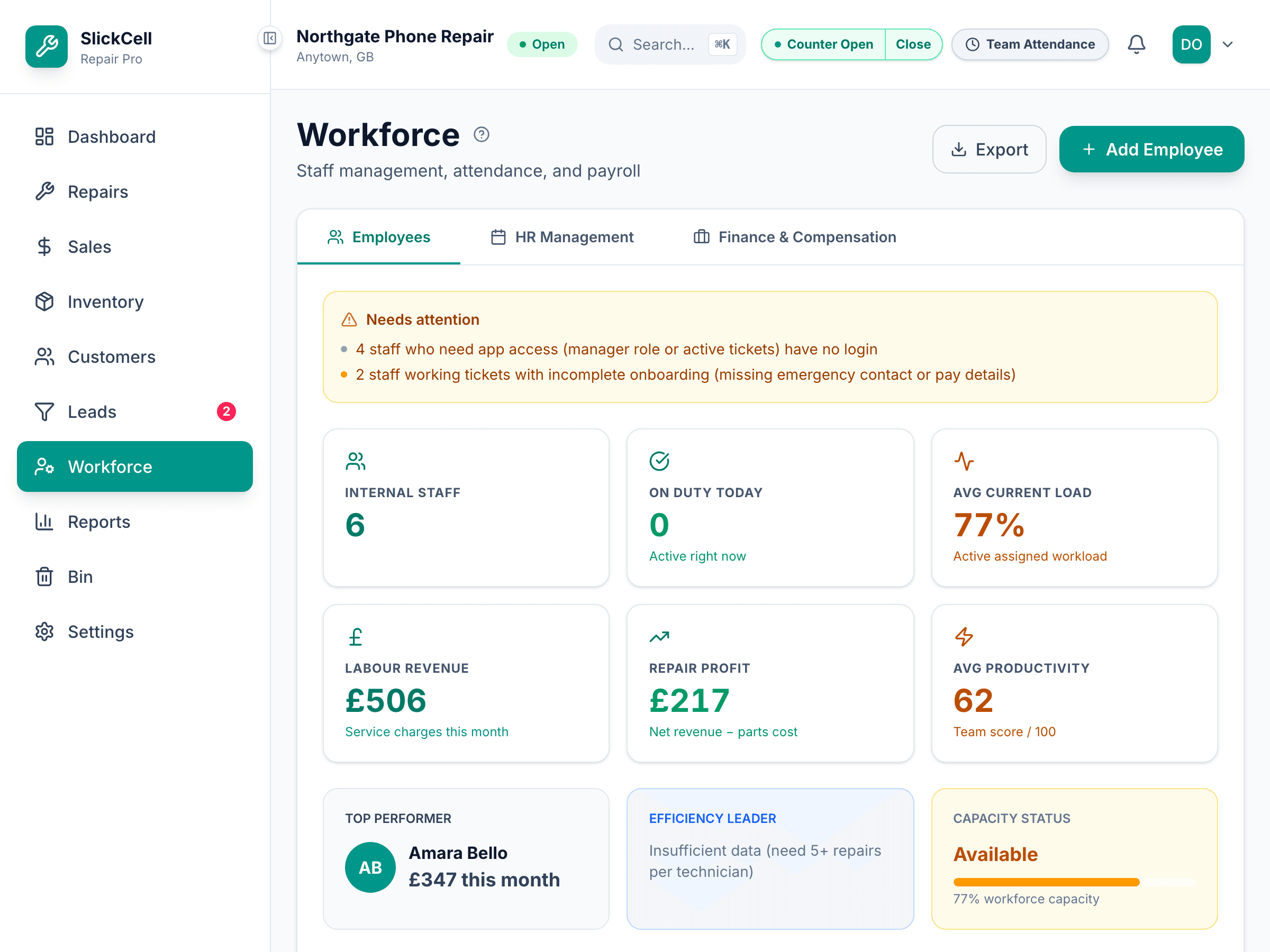
Questions that come up
- Someone has left
- Remove their access from the team. Their work stays on the records they did it on — a removed person does not erase a history.