
Help centreGetting startedUpdated
Jump to any screen with ⌘K
The header carries a command palette, the till session and attendance; the dashboard carries ten one-click actions. What each does, and what it does not.
By the end of this you will be able to reach any screen in the app without touching the sidebar, and you will know what the four controls along the top of every page are for.
One thing worth knowing up front: the palette finds screens and actions, not your records. Looking for a customer or a ticket number means going to that screen first.
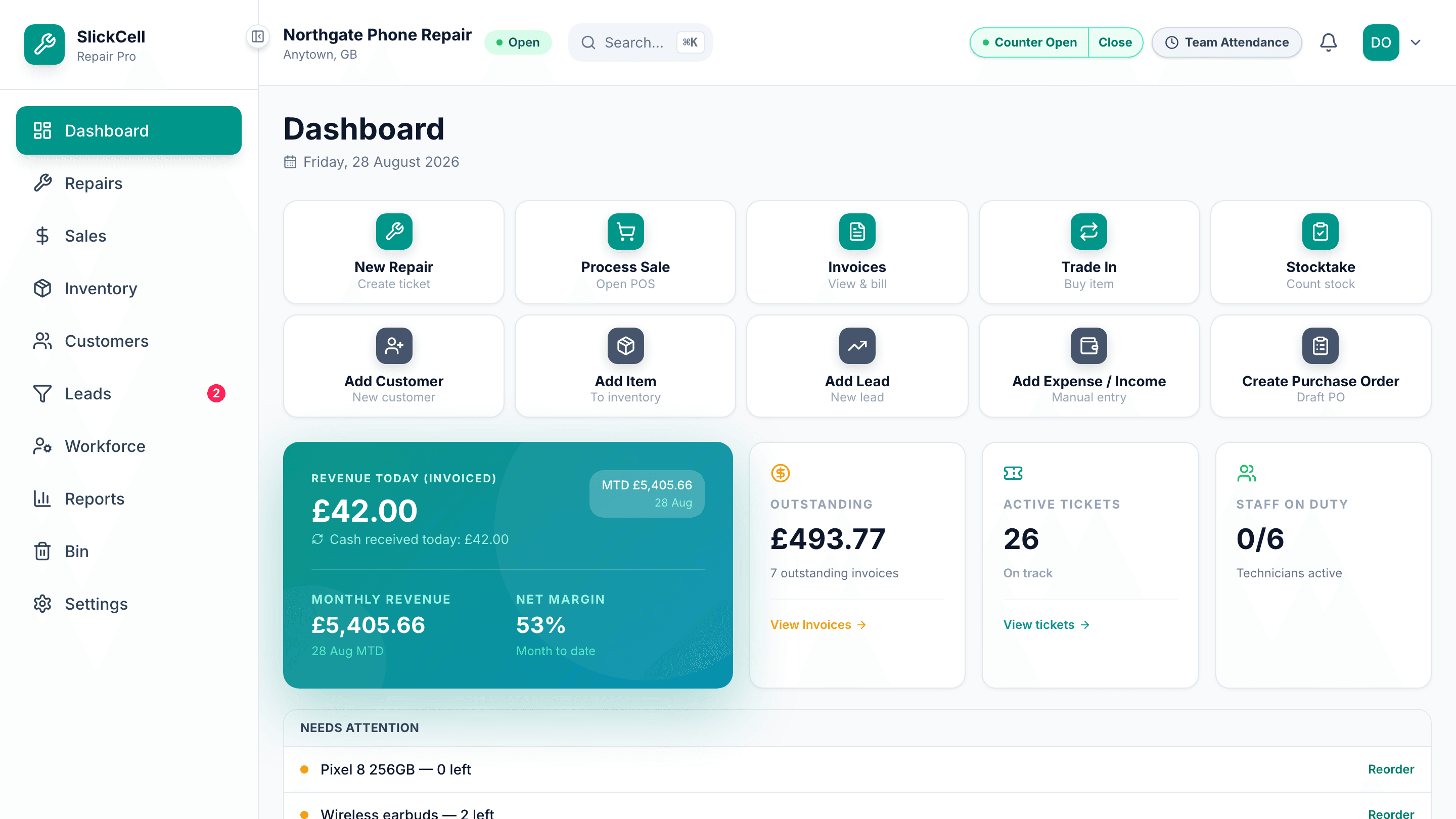
- The finder — ⌘K, or Ctrl+KType a few letters of a screen or an action and press Enter. It covers every page, every tab inside a page, and the things you start rather than visit — a new ticket, the scanner.
- The till sessionOpen on a float at the start of the day, close on a counted drawer at the end. The pill tells you which state you are in from anywhere in the app.
- Team attendanceClock yourself in, and — if you are an owner or a manager — clock anyone else in or out without them queueing for the till.
- Quick actionsTen of them, and you only see the ones your role can use. A technician and an accountant open the same dashboard and get different tiles.
- Money in and out, by handRent, wages, a cash sale of old equipment — the entries that are not a sale but still moved money.
Nothing here is set up. It is on every page from the first day of the trial.
Press ⌘K
Ctrl+K on Windows. The palette opens over whatever you are doing, and closes on Escape without changing anything.
There is a button for it in the header too, next to the shop name — the keyboard shortcut and the button open the same thing.
Type part of what you want
“inv” finds Invoices, “stock” finds the stocktake and the stock movements, “tech” finds the technician views. Partial words are fine; you do not need the beginning of the name.
Go deeper than a page
Tabs and sections inside a page are in there too, so “faulty” goes straight to Inventory's faulty-items tab rather than to Inventory and then a hunt.
Start something, not just visit it
Some entries do rather than go: a new repair ticket, the barcode scanner. Enter starts them where you are.
You only see what your role allows. Nothing appears in the list that you would be refused after choosing it.
Use the dashboard for the ten common jobs
The tiles under the header are the things a shop does all day — a repair, a sale, an invoice, a trade-in, a stocktake, a customer, an item, a lead, a manual money entry, a purchase order.
app.slickcell.com/dashboard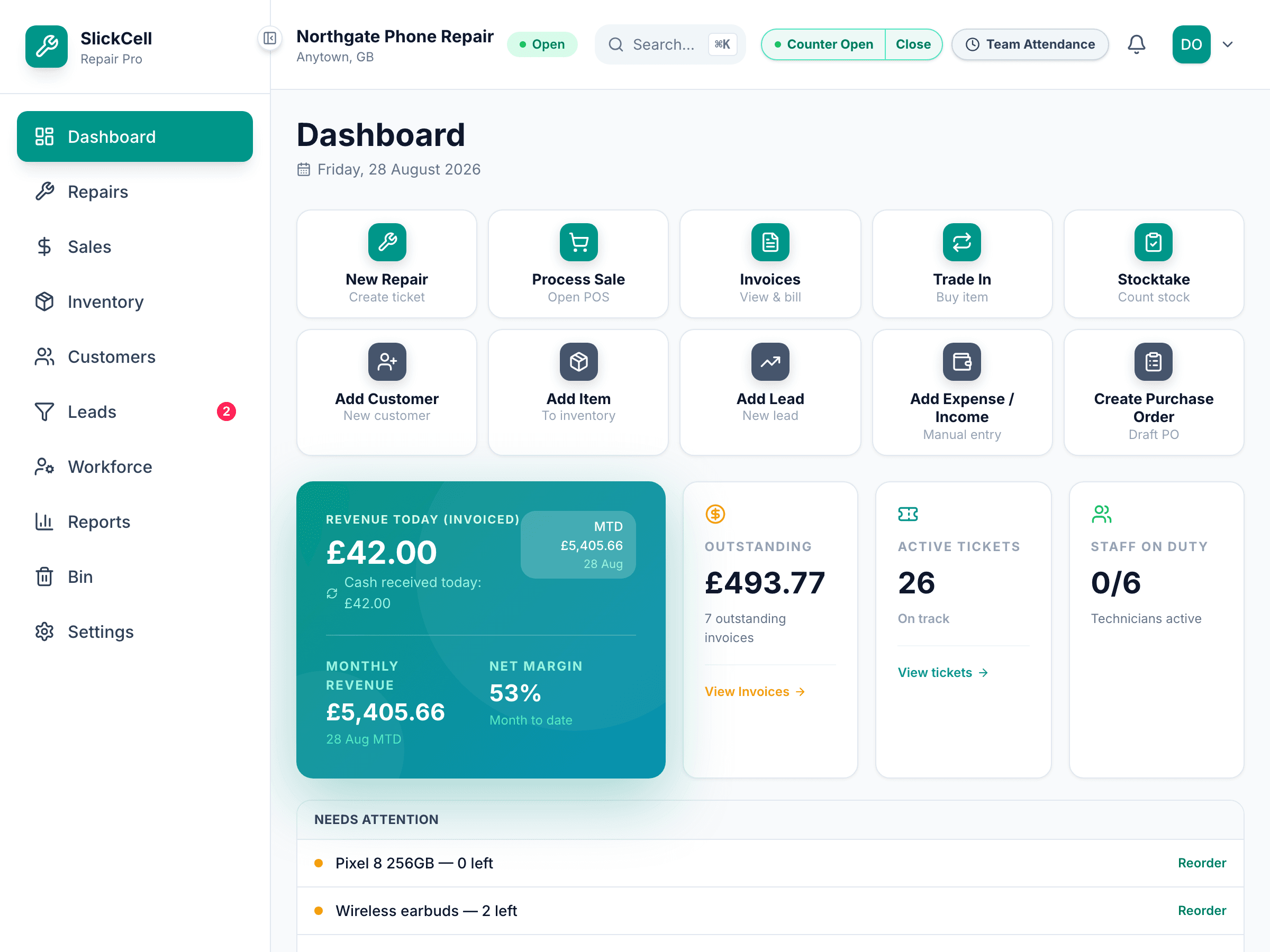
Questions that come up
- Can I search for a customer or a ticket number in it?
- No. The palette finds screens, tabs and actions — not your records. To find a customer, open Customers and search there; for a repair, open Repairs. It is a way of getting somewhere fast, not a search of your data.
- Can I scan a barcode into it?
- Not into the palette. Scanning is its own thing — the scanner button in the header, or a paired phone at the till.
- Can we change which quick actions appear?
- Not from Settings. The set is fixed, and which of them you see follows your role — an accountant does not get New Repair, and only someone who can write to the cashbook gets the money-in-and-out tile.
- Does the shortcut clash with the browser?
- ⌘K and Ctrl+K are claimed by the app while you are on one of its pages. If you need the browser's own version, click into the address bar first.